
AutoSave Can Preserve the Mistake, Too
Microsoft AutoSave keeps your cloud documents constantly updated, but it also saves unwanted changes. Understanding how to manage version history and file copies can protect your original data.

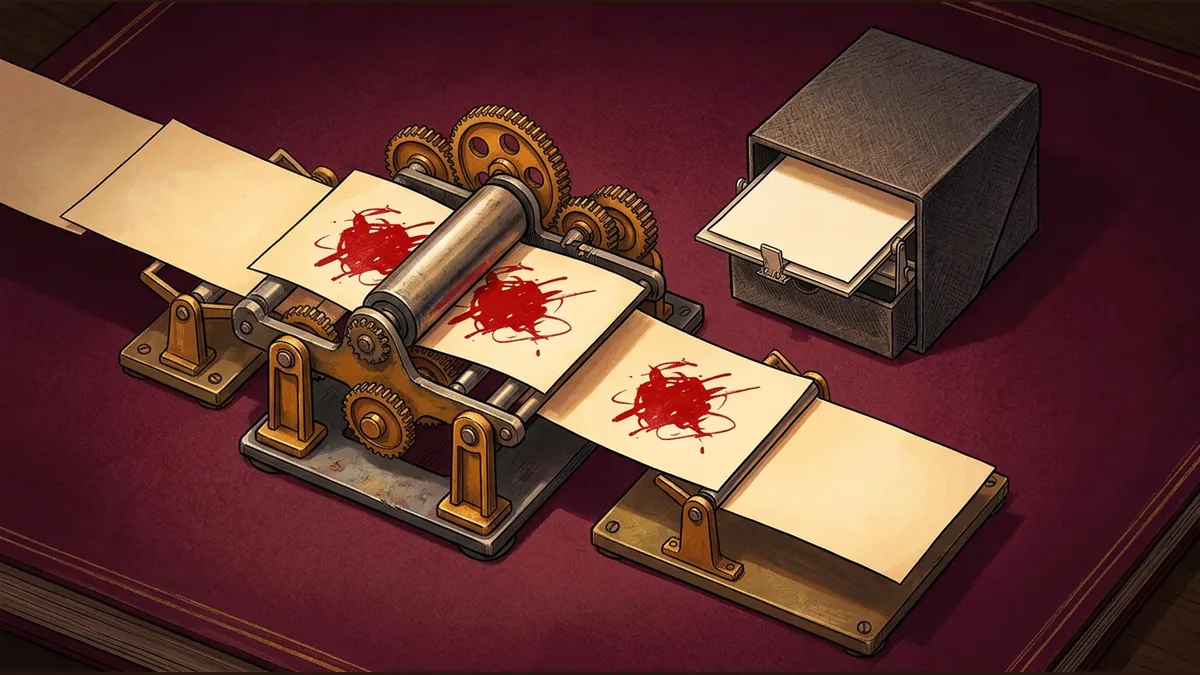

Modern cloud productivity suites offer peace of mind by constantly saving your progress. When working with supported Microsoft 365 cloud storage, Microsoft AutoSave automatically writes your edits to the cloud as you make them. However, this continuous synchronization has a double-edged sword: it also immediately saves any mistakes, accidental deletions, or experimental changes that you later decide you did not want to keep.
The Danger of What-If Experiments
Consider a hypothetical scenario where an analyst opens a master sales spreadsheet to run a quick test. They want to see what happens to the quarterly projections if raw material costs rise by 50 percent. They input the inflated numbers to observe the calculated results. Because AutoSave is active, these temporary 'what-if' figures are instantly saved directly into the live production file, potentially confusing colleagues who access the document next.
How to Protect Your Original Data
To prevent temporary experiments from overwriting your important files, Microsoft suggests creating a deliberate copy of the document before you begin making test edits. This simple step ensures your creative or analytical experiments remain completely isolated from the original master file.
If an unwanted change has already been saved, you may still be able to recover your previous work. OneDrive features a version history tool that allows users to restore an earlier stored version of a file. It is important to note that the availability and retention period of these older versions are not universal; they depend heavily on your specific service plan, account type, and system configuration.
Key Takeaway for Cloud Users
Do not rely on AutoSave as a safety net for experimental editing. Before testing new formulas or making major layout changes, always save a manual copy of your file to keep your original data secure.
Your reaction
Loading reactions…
Comments 0
Review comments