
Why a Lazy-Loaded Image Below the Fold Can Still Ruin Your CLS Score
Lazy loading is a great way to speed up initial page loads, but omitting image dimensions on below-the-fold assets can trigger unexpected layout shifts and damage your Core Web Vitals.

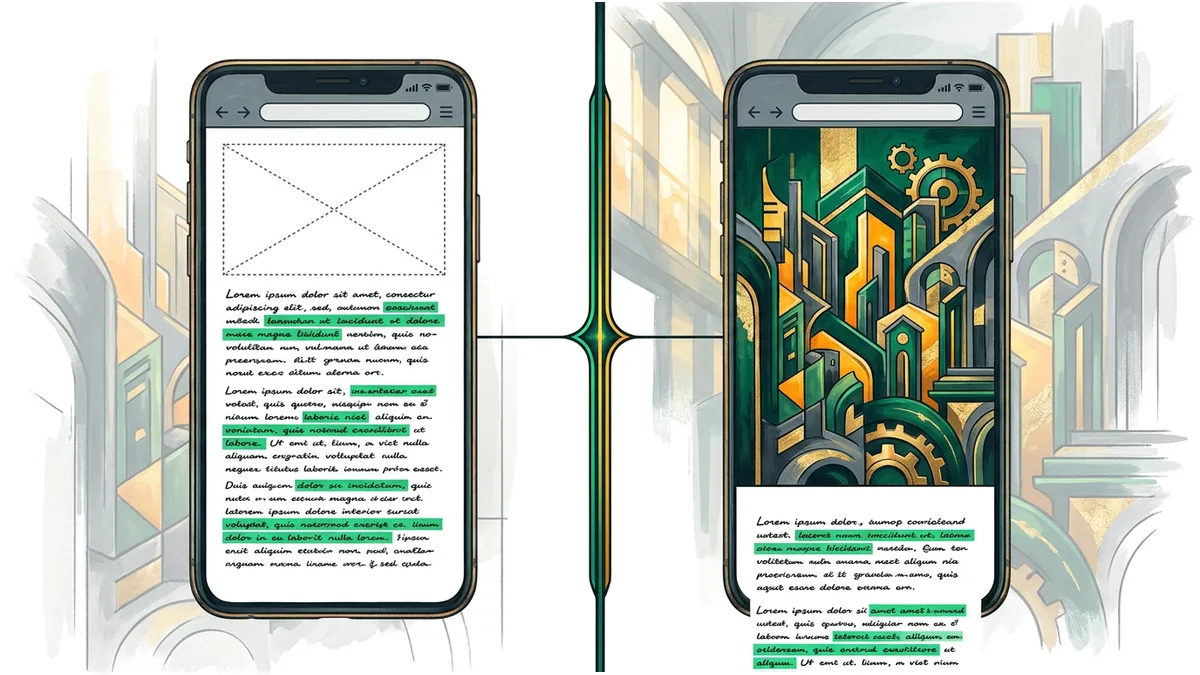

Lazy loading is a standard performance optimization used to defer the loading of off-screen images until they are needed. However, many developers mistakenly believe that delaying the rendering of below-the-fold assets completely insulates their site from layout instability. In reality, an unmanaged lazy-loaded image can act as a hidden trigger for Cumulative Layout Shift (CLS), degrading the user experience long after the initial page load is complete.
How Cumulative Layout Shift Measures the Entire Session
A common misconception is that Core Web Vitals only evaluate the first few seconds of a page load. However, Cumulative Layout Shift is measured throughout the entire lifespan of a page rather than just during the initial page load. This means that any unexpected movement of elements on the screen, even minutes after the page has loaded, counts toward the final CLS score. When a user scrolls down a page and triggers the rendering of lazy-loaded content, any resulting layout movement is fully penalized.
The Mechanism of the Post-Load Layout Shift
The root cause of this issue is the absence of explicit sizing instructions for the browser. Omitting width and height dimensions prevents the browser from reserving space for an image before it begins downloading. Without these dimensions, the browser initially treats the image container as having zero height. As the user scrolls and the image enters the viewport, the browser starts downloading the file, discovers its actual dimensions, and suddenly expands the container. This forces any surrounding text or elements to shift abruptly to make room for the newly loaded asset.
A Hypothetical Scenario: The Anchor Link Trap
To understand how this behavior impacts real users, consider a hypothetical long-form article that includes a lazy-loaded diagram placed halfway down the page. The image tag for this diagram lacks any width or height attributes. A reader lands on the page and clicks a table-of-contents link designed to jump directly to a text section located right below this diagram. The browser instantly scrolls the viewport down to the target anchor. As the diagram enters the viewport boundary, the lazy-loading script triggers the image download. Once the image file arrives, the container suddenly expands from 0 pixels to 400 pixels tall. This sudden expansion pushes the text the reader has just started reading entirely off the screen, creating a frustrating and disruptive experience.
How to Reserve Space and Protect Your Layout
Fortunately, preventing these post-load layout shifts is straightforward. Developers must provide the browser with enough layout information to allocate the correct amount of space in the document flow before the image asset actually arrives.
- Define explicit width and height attributes directly on the HTML image element to allow the browser to calculate the aspect ratio.
- Use the CSS aspect-ratio property to reserve a responsive container space that matches the dimensions of the incoming image.
- Avoid lazy loading images that are highly likely to appear in or near the initial viewport to ensure immediate stability.
The Takeaway for Web Developers
Lazy loading is not a substitute for proper layout planning. To maintain a healthy CLS score and provide a smooth reading experience, every lazy-loaded image must have its dimensions pre-allocated. Ensuring the browser knows how much space to reserve guarantees that content remains stable, no matter how or when a user navigates down the page.
Your reaction
Loading reactions…


Comments 0
Review comments